How to forward messages to a phone number
Forward SMS is a versatile iOS app that seamlessly forwards SMS to emails, Slack, Discord, URLs/APIs, or Telegram.
This guide will walk you through the steps required to forward text messages to another phone number.
The Shortcuts app in iOS is a built-in Apple app that lets you create custom automations to perform tasks on your device more efficiently. Follow these steps to create an automation that forwards messages:
Which iOS version is your iPhone on?
Not sure which one you have?
Open Settings › General › About and check iOS Version, or compare your Shortcuts app:
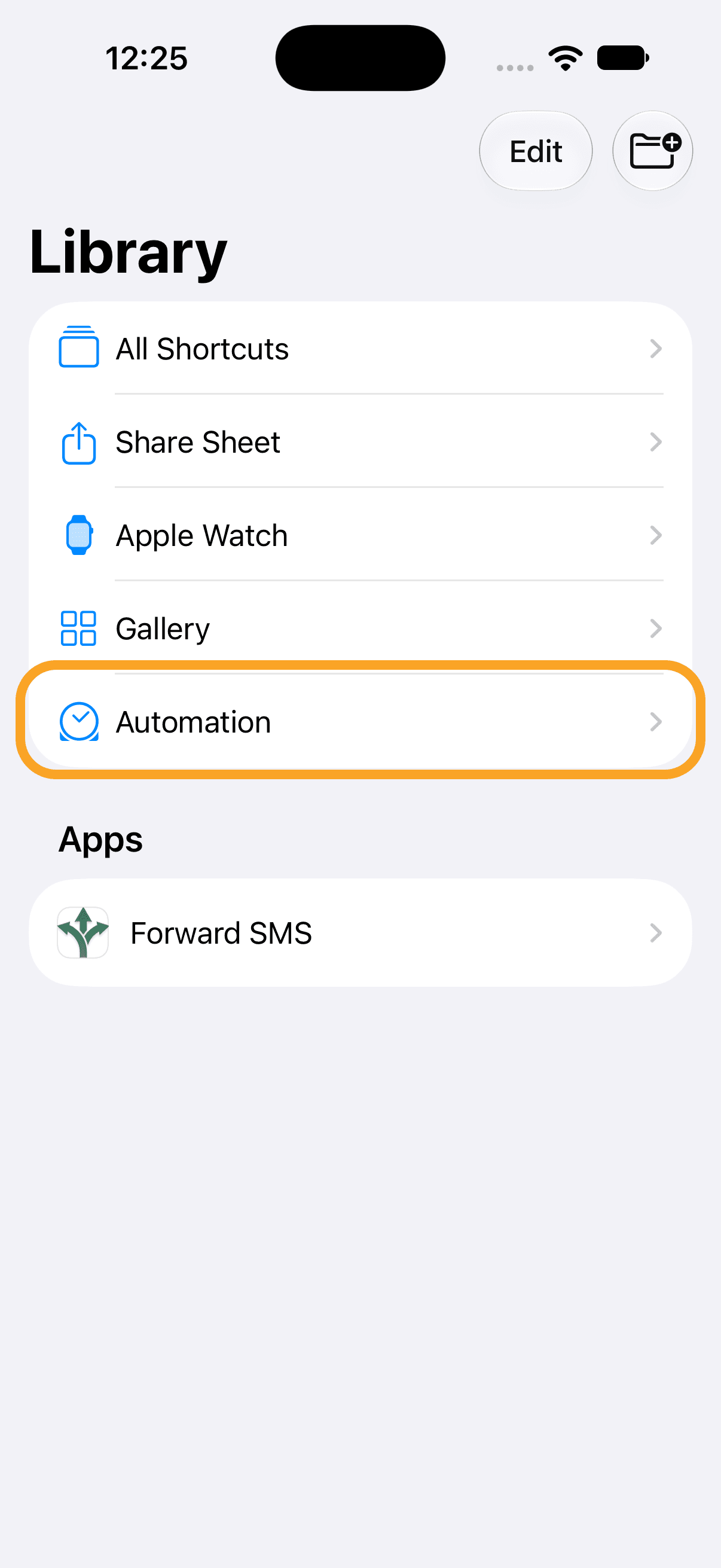
Tap Edit
Tap the Edit button at the top right. If you don't see this screen and the list of actions opens straight away, skip to the next step.
Match all messages
Tap Sender and select Message. Then enter a blank space in the contains field, so the automation runs for all messages.
To forward messages from one sender only, keep Sender and choose that contact instead. The automation needs either a sender or a message condition. The Forward SMS app provides additional filter options in its rules.
Enable the automation
Make sure the Automation toggle is on and Confirm Before Run is off, so that it runs as soon as a message is received.
Add the Forward Message action
Tap Search at the bottom of the screen, search for Forward SMS and select the Forward Message action.
Pass the message to the action
Tap the Message field. In the toolbar above the keyboard, select the Message option.
Add the Send Message action
Tap Search at the bottom of the screen and select the Send Message action. Its message is filled in automatically with Forward Message, the text from the previous action.
Enter the recipient
Tap Recipients and type the phone number you want to forward the message to, or tap + to pick a contact. You can add multiple recipients as well. Then tap the checkmark.
Done
There's no save button: the automation is saved automatically. Go back or leave the Shortcuts app. Now let's create a rule in the Forward SMS app.
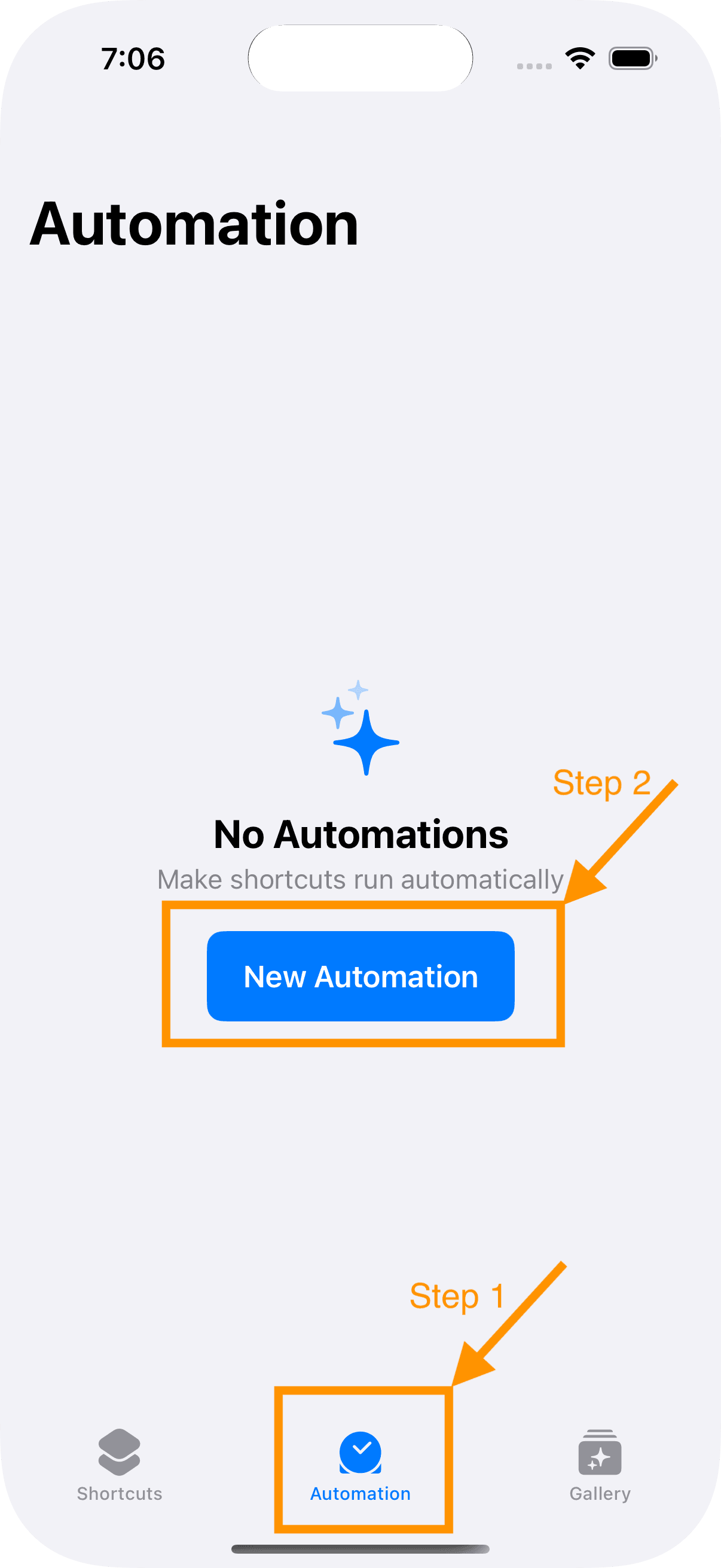
Create a new automation
Go to the Shortcuts app and select the Automation tab. Then select the New Automation option.
Set it to run immediately
On the next screen, select the Run Immediately option. As the name suggests, this runs the automation as soon as a message is received.
Match all messages
To set up the automation for all messages, enter a blank space in the Message Contains field. Alternatively, you can enter a specific keyword for which the automation should run.
Pass the message to the action
On the next screen, tap the Message field to fill it in. In the toolbar that appears above the keyboard, swipe right and select the Shortcut Input option.
Add the Send Message action
Now create a new action for the message. First, search for Send Message in actions, then tap the Message field to fill it in. In the toolbar that appears above the keyboard, swipe right and select the Shortcut Input option.
Enter the recipient
Enter the recipient you want to forward the message to. You can add multiple recipients as well.
Save the automation
Save the automation by tapping the Done button. Congratulations! You've set up the automation to forward text messages to another phone number. This is how the automation should look.

After setting up the automation, follow these steps to create a rule in the Forward SMS app:
Congratulations! You've set up the Forward SMS app to forward text messages to a phone number.